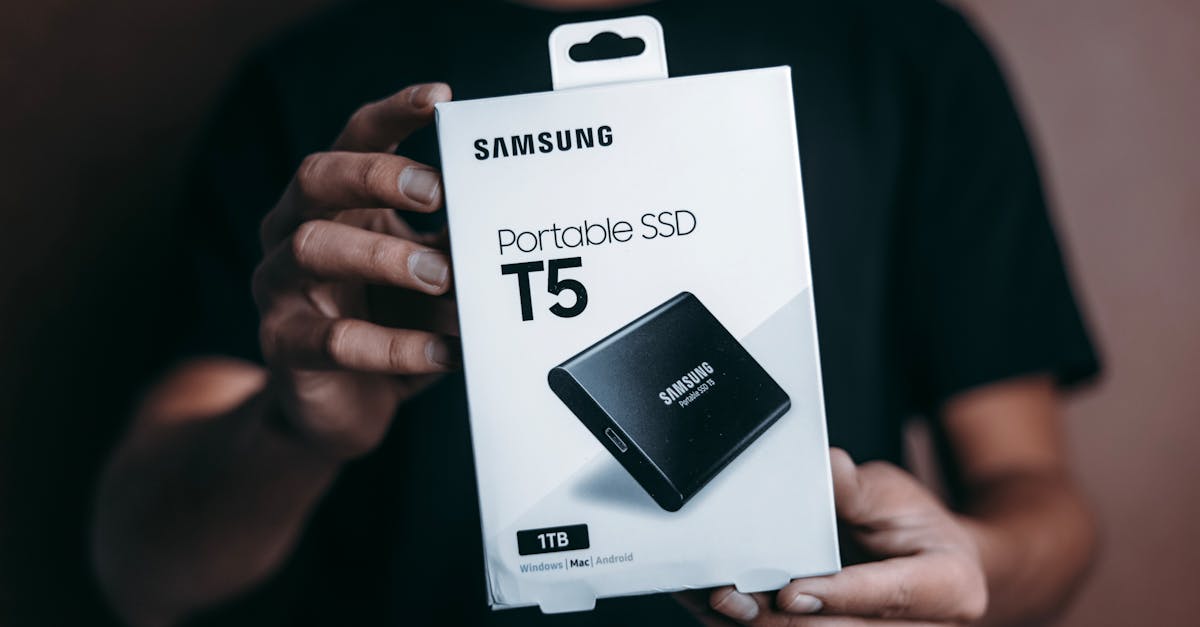
When I first started dabbling in digital photography and video editing years ago, I quickly ran into a brick wall: storage. My laptop’s internal drive filled up faster than I could empty it, leaving me constantly deleting files, compressing projects, and generally pulling my hair out. I knew I needed an external hard drive, but walking into a big box store presented an overwhelming array of options. Terabytes, RPMs, SSDs vs. HDDs, USB 3.0 vs. Thunderbolt – it felt like deciphering a secret code. My initial mistake, like many, was simply grabbing the cheapest drive with the biggest number on the box. I quickly learned that “value” isn’t just about the initial price tag; it’s about reliability, speed, and how well it integrates into your workflow without causing headaches down the line.
After years of testing countless drives for various tasks, from simple backups to active video editing projects, I’ve developed a system for evaluating external hard drives that prioritizes both long-term reliability and real-world value. It’s not about finding the absolute cheapest per gigabyte, but the one that won’t leave you scrambling for data recovery services a year later.
Key Takeaways
- Prioritize drive type (SSD for speed, HDD for capacity) based on your primary use case, not just price.
- Understand that rotational speed (RPM) in HDDs directly impacts performance and heat, with 7200 RPM offering a better balance for active use.
- Choose connectivity (USB 3.2 Gen 2, Thunderbolt) based on your devices’ ports and desired transfer speeds, avoiding older USB standards for large files.
- Evaluate enclosure quality and included software for added value in terms of physical protection and backup utilities.
Match Drive Type to Your Real-World Use Case: SSD vs. HDD Beyond Price
The most fundamental decision you’ll make when picking an external hard drive is whether to go with a Hard Disk Drive (HDD) or a Solid State Drive (SSD). The mistake I see most often is people defaulting to an HDD because it offers more gigabytes per dollar. While that’s true, it overlooks the critical differences in performance and durability that often dictate real-world value.
HDDs use spinning platters and read/write heads, much like a tiny record player. This mechanical nature makes them inherently slower and more susceptible to physical shock. If you drop an HDD, even a short fall, there’s a significant chance of data loss. Their strength lies in raw capacity at a lower cost. For instance, a 4TB external HDD might cost around $100-$120, while a 4TB external SSD could easily be $300-$400 or more. In my experience, HDDs are best suited for:
- Archival storage: Storing old photos, finished video projects, or large media libraries that you access infrequently.
- Large, static backups: Full system backups or cold storage for data that doesn’t change often.
- Budget-conscious capacity: When you absolutely need many terabytes and speed isn’t a primary concern.
SSDs, on the other hand, use flash memory, similar to the chips in your smartphone or USB stick. They have no moving parts, making them significantly faster and far more robust against drops and bumps. The speed difference is substantial: a good external SSD can easily hit read/write speeds of 500-1000 MB/s or even faster with NVMe-based drives, while a fast external HDD might top out at 150-200 MB/s. What changed everything for me was realizing that for active projects, the time saved by an SSD far outweighed its higher price. For example, transferring a 50GB video project might take 5 minutes on an SSD versus 30-40 minutes on an HDD. This adds up quickly when you’re working with multiple large files daily. SSDs are ideal for:
- Active project storage: Video editing, graphic design, or working directly off the drive.
- Portable daily backups: Carrying crucial files that you need fast access to and robust protection for.
- Gaming libraries: Storing games for quicker load times on a console or PC.
- Bootable drives: Running an operating system directly from the external drive.
When evaluating value, don’t just look at the price per terabyte. Consider the cost of your time and the risk of data loss. If you’re a student carrying presentations, a photographer constantly moving raw files, or a gamer tired of long load screens, an SSD, despite its higher upfront cost, often provides far greater long-term value and peace of mind.
Don’t Overlook Rotational Speed (RPM) for HDDs
If you decide an HDD is the right choice for your needs, there’s another crucial specification often buried in the fine print: rotational speed, measured in RPM (revolutions per minute). Most external HDDs today come in either 5400 RPM or 7200 RPM varieties, and this number has a significant impact on performance, noise, and heat generation. The common misconception is that all HDDs are more or less the same speed, which couldn’t be further from the truth.
5400 RPM drives are typically found in more budget-friendly and compact external enclosures. They consume less power, run cooler, and are quieter, but they are noticeably slower. For archival storage or very infrequent access, where you’re simply dumping files and forgetting about them, a 5400 RPM drive is perfectly adequate. An example would be storing family photos from five years ago that you might look at once a year. Their slower performance becomes a bottleneck if you’re frequently transferring large files or working directly from the drive.
7200 RPM drives offer a substantial performance boost over their 5400 RPM counterparts. The faster platters mean data can be read and written more quickly, leading to higher sustained transfer speeds. This difference is most apparent when moving large blocks of data, like multi-gigabyte video files or entire game installations. For me, 7200 RPM became the minimum standard for any HDD I planned to use for active work or even regular backups. While they tend to be slightly more expensive, generate a bit more heat, and might have a faint hum, the speed improvement for active use is well worth the trade-off. For instance, backing up a 200GB project might take 20 minutes on a 7200 RPM drive compared to 30-40 minutes on a 5400 RPM drive. Over many backups, this adds up to significant time savings.
Some manufacturers don’t explicitly list the RPM for their external HDDs, especially in the more compact, bus-powered models. In such cases, assume it’s a 5400 RPM drive. If a drive explicitly mentions “performance” or is marketed towards content creators, it often implies a 7200 RPM drive. Always check the specifications or user reviews to confirm. For the best balance of capacity and active performance from an HDD, a 7200 RPM drive is generally the smart play, even if it means a slightly higher initial investment.
Prioritize Interface and Connectivity for Speed and Compatibility
The fastest drive in the world is only as fast as its connection to your computer. The interface, or the type of port and cable it uses, is a critical factor often overlooked until you’re trying to transfer a massive file and realize it’s crawling. What changed everything for me was standardizing my connectivity to match my workflow, ensuring I wasn’t bottlenecked by an outdated port. Here’s a breakdown of what matters:
USB 2.0 (Avoid): This is ancient history for external storage. With theoretical speeds of 480 Mbps (around 60 MB/s), it’s agonizingly slow for anything beyond small document transfers. If you see a drive advertising only USB 2.0, steer clear unless it’s for a very niche, low-speed application.
USB 3.0 / USB 3.1 Gen 1 / USB 3.2 Gen 1 (Baseline): These are all effectively the same standard, offering speeds up to 5 Gbps (around 625 MB/s). This is the absolute minimum you should consider for any modern external drive, whether HDD or SSD. Most external HDDs will be bottlenecked by their internal spinning platters before they hit the USB 3.0 speed limit, so this is generally sufficient for them. For external SSDs, USB 3.0 is a good starting point, but you’ll want faster for peak performance.
USB 3.1 Gen 2 / USB 3.2 Gen 2 (Performance Sweet Spot): This standard doubles the speed to 10 Gbps (around 1.25 GB/s). This is the sweet spot for many external SSDs, allowing them to truly stretch their legs and deliver excellent transfer rates. If you have an external SSD, aiming for this standard on both your drive and your computer’s port will yield significant performance benefits, especially when working with large files like 4K video footage or large game installations. Many modern laptops and desktops feature USB-C ports that support this speed.
USB 3.2 Gen 2x2 (High-End USB): This relatively newer USB standard offers 20 Gbps (around 2.5 GB/s). It’s less common but provides even more headroom for the fastest NVMe-based external SSDs. If your computer supports it (often identifiable by a USB-C port with a “20” or “SS20” label), this offers near-Thunderbolt speeds over a more widely compatible USB connection.
Thunderbolt 3 / Thunderbolt 4 (Premium Performance): Offering a blistering 40 Gbps (around 5 GB/s), Thunderbolt is the king of external connectivity. It’s found primarily on higher-end Macs and some premium Windows PCs, typically identified by a lightning bolt icon next to the USB-C port. Thunderbolt drives are often more expensive but offer unparalleled speed and the ability to daisy-chain multiple devices. If you’re doing professional video editing, heavy data analysis, or running multiple 4K monitors, Thunderbolt is the gold standard. A common mistake is buying a Thunderbolt drive when your computer only has USB-C, as it won’t operate at full Thunderbolt speeds.
Always check your computer’s ports and match them to the drive’s interface. A USB 3.2 Gen 2 external SSD connected to an old USB 2.0 port will perform like a USB 2.0 drive, wasting its potential. Prioritize the fastest compatible interface for your primary workflow to maximize your drive’s value and speed.
Evaluate Enclosure Quality and Included Software for Added Value
Beyond the raw specs of the drive itself, the enclosure quality and any included software can significantly impact the overall value and user experience of an external hard drive. This is where subtle differences often separate a good value from a frustrating purchase.
Enclosure Quality
My experience has shown me that a robust enclosure is just as important as the drive inside, especially for portable drives. A common pitfall is choosing a cheap drive with a flimsy plastic case. While it might save a few dollars upfront, it exposes your valuable data to unnecessary risk. Look for:
- Material: Drives with aluminum or reinforced plastic casings generally offer better protection against drops and bumps than thin, glossy plastic. Aluminum also aids in heat dissipation, which is crucial for prolonging the life of the internal drive, particularly SSDs that can get warm under heavy load.
- Shock Resistance: Many portable drives advertise specific MIL-STD drop ratings. While not every drive needs to be military-grade tough, a stated drop resistance (e.g., “up to 1.2 meters”) indicates that the manufacturer has put some thought into protecting the internal components. This is especially vital if you frequently transport the drive.
- Port Protection: Check the quality of the port itself. A recessed USB-C port or one with a snug, reinforced connection is less likely to suffer damage from repeated plugging and unplugging or accidental tugs on the cable. Loose ports are a common point of failure.
- Form Factor: Consider whether the drive is bus-powered (draws power from the USB/Thunderbolt port) or requires an external power adapter. Bus-powered drives are more portable and convenient, making them ideal for laptops and on-the-go use. Drives with external power adapters typically offer higher capacities (often desktop HDDs) and more stable power delivery, but at the cost of portability.
Included Software
While optional, bundled software can enhance the value, particularly for users new to external storage. The mistake I often see is users either ignoring this software or assuming it’s bloatware. Some of it genuinely offers useful features:
- Backup Utilities: Many drives, especially from brands like Western Digital or Seagate, include basic backup software. This can simplify setting up automatic backups, ensuring your data is regularly protected without manual intervention. While not as feature-rich as dedicated backup solutions, they’re a great starting point for basic file and folder backups.
- Encryption Tools: Some drives come with software for hardware encryption, adding an extra layer of security. If you store sensitive information, hardware encryption is generally more robust than software-based encryption and can protect your data if the drive falls into the wrong hands. Look for AES 256-bit encryption.
- Drive Health Monitoring: Occasionally, drives will include utilities that monitor the drive’s health (e.g., S.M.A.R.T. data), allowing you to anticipate potential failures before they lead to data loss. This proactive insight can be invaluable.
Always check reviews for the quality of the included software; sometimes it truly is bloatware, but often there are gems that add genuine utility, especially if you don’t already have preferred third-party solutions. A well-built enclosure and thoughtful software additions transform a mere storage device into a reliable, integrated tool in your digital life.
Account for Long-Term Data Integrity and Drive Lifespan
When I first started out, I treated external hard drives as interchangeable. I’d buy one, use it until it died (and they always died, usually at the worst possible moment), and then buy another. This reactive approach cost me countless hours in data recovery attempts and the stress of losing irreplaceable files. What changed everything for me was adopting a more proactive mindset about long-term data integrity and understanding the factors that influence a drive’s lifespan. The mistake is assuming all drives are created equal in their longevity.
Understanding Drive Failure Rates
Even with the best care, drives fail. HDDs are mechanical, and mechanical parts wear out. SSDs, while more robust physically, have a finite number of write cycles before their flash memory degrades. While manufacturers provide warranty periods (typically 1-5 years), this is a guarantee against defects, not against inevitable wear and tear. Here’s what I’ve learned:
- HDD Lifespan: On average, HDDs have a lifespan of 3-5 years of continuous use. However, factors like heat, vibration, and frequent power cycling can significantly shorten this. A drive constantly being plugged in and unplugged, or one left spinning 24/7 in a poorly ventilated enclosure, will likely fail sooner. In my experience, drives that are only powered on when needed, and allowed to spin down when idle, tend to last longer.
- SSD Lifespan (TBW): SSDs are measured by TBW (Terabytes Written), which indicates how much data can be written to the drive before it might start failing. A typical consumer external SSD might have a TBW rating of 300-600 TB for a 1TB drive. For most users, this is far more than they’ll ever write, meaning an SSD’s lifespan is often more limited by the components around it (controller, firmware) or external factors rather than flash wear. However, for professionals constantly writing massive amounts of data (e.g., 8K video editing), this rating becomes a real consideration.
Proactive Measures for Longevity
True value isn’t just the purchase price; it’s the cost of lost data and the effort to replace it. To account for long-term reliability:
- “3-2-1 Backup Rule”: This is the golden rule of data integrity. Always have 3 copies of your important data, on at least 2 different types of media, with 1 copy offsite. Your external hard drive is one of those copies, not the only one. For example, my most critical files are on my laptop, backed up to an external SSD, and also synced to cloud storage (offsite).
- Monitor Drive Health: Utilize any included S.M.A.R.T. (Self-Monitoring, Analysis, and Reporting Technology) software or third-party tools to periodically check the health of your drives, especially HDDs. Early warning signs like increasing reallocated sectors or pending sector counts can give you time to migrate data before a catastrophic failure.
- Proper Handling and Environment: For HDDs, avoid sudden movements or drops, especially while they’re operating. Keep drives in a cool, well-ventilated area, away from direct sunlight or sources of vibration. Power them down safely when not in use. For SSDs, while less sensitive to physical shock, managing heat is still important for long-term performance.
- Buy from Reputable Brands: While all drives can fail, reputable brands like Western Digital, Seagate, Samsung, and SanDisk generally offer better quality control and more robust warranties. Check user reviews for consistent complaints about early failures before committing.
By factoring in these considerations about drive lifespan and implementing sound backup practices, you’re not just buying a piece of hardware; you’re investing in the security and accessibility of your digital life, which is where the real long-term value lies.
Frequently Asked Questions
What is the best external hard drive for everyday backups?
For everyday backups that prioritize speed and durability, an external SSD with a USB 3.2 Gen 2 (10 Gbps) interface is generally the best choice. It offers fast transfer speeds for quick incremental backups and is robust enough to handle being carried around without worrying about drops. For larger, less frequent archival backups, a 7200 RPM external HDD (USB 3.0 or better) offers greater capacity at a lower cost.
Is a 5400 RPM or 7200 RPM external drive better?
A 7200 RPM external HDD is generally better for active use, frequent large file transfers, or working directly off the drive, as it offers noticeably faster read and write speeds. A 5400 RPM external HDD is better for archival storage, occasional backups, or when low noise and cooler operation are more important than speed, often at a slightly lower price point. For most users looking for a balance of performance and capacity from an HDD, 7200 RPM is preferred.
How important is the brand when buying an external hard drive?
The brand is quite important for external hard drives. Reputable brands like Western Digital, Seagate, Samsung, and SanDisk generally offer better reliability, customer support, and clearer warranty policies. While failures can occur with any brand, these companies typically have more stringent quality control and better firmware, which can impact both performance and longevity. Researching user reviews specific to a model from these brands can provide further confidence.
How much storage do I really need in an external hard drive?
To determine how much storage you need, consider your current data usage and anticipate future growth. A good rule of thumb is to buy a drive that is at least twice the size of the data you currently need to store. This provides room for future files and allows for multiple versions of backups. For general users, 1-2 TB is often sufficient. For content creators or those with large media libraries, 4 TB or more might be necessary. It’s almost always better to overestimate slightly than to run out of space quickly.
Can I use an external hard drive for gaming?
Yes, you can use an external hard drive for gaming. For the best performance, especially with modern games that have large file sizes and long load times, an external SSD is highly recommended. It will significantly reduce load screens and overall game responsiveness compared to an HDD. Ensure your console or PC supports the drive’s interface (e.g., USB 3.0 or faster) and that the drive has sufficient capacity for your game library.
Should I format my new external hard drive?
Most new external hard drives come pre-formatted, usually for Windows (NTFS) or macOS (HFS+/APFS). If you plan to use the drive with a single operating system, the default format is usually fine. However, if you plan to use it with both Windows and macOS, you should reformat it to exFAT. Reformatting can also resolve minor compatibility issues or prepare the drive for specific uses (like a bootable drive). Always back up any pre-loaded software or documentation before reformatting.
Conclusion
Choosing an external hard drive isn’t about finding the cheapest storage per gigabyte; it’s about making an informed decision that balances your immediate needs with long-term reliability and workflow efficiency. By understanding the nuances between SSDs and HDDs, appreciating the impact of rotational speed for mechanical drives, and matching your drive’s interface to your computer’s capabilities, you can select a device that genuinely serves your purpose. Don’t forget to consider the quality of the enclosure and any bundled software, as these contribute to the overall value and protection of your data. And most importantly, always remember the 3-2-1 backup rule – your external drive is a crucial component of that strategy, but rarely the only one. Investing a little extra thought upfront will save you immeasurable frustration and potential data loss down the line. Take the time to assess your specific usage, and you’ll find an external hard drive that feels like a true extension of your digital life, not just another peripheral.